Documentation & Handoff
Imagine an engineer building an invite screen from a frame that was replaced a week ago. The file has no empty state and no error state, so the engineer guesses both, and the review sends the work back.
Learn on the move: press play and turn your commute, walk or drive into time that grows your design career.

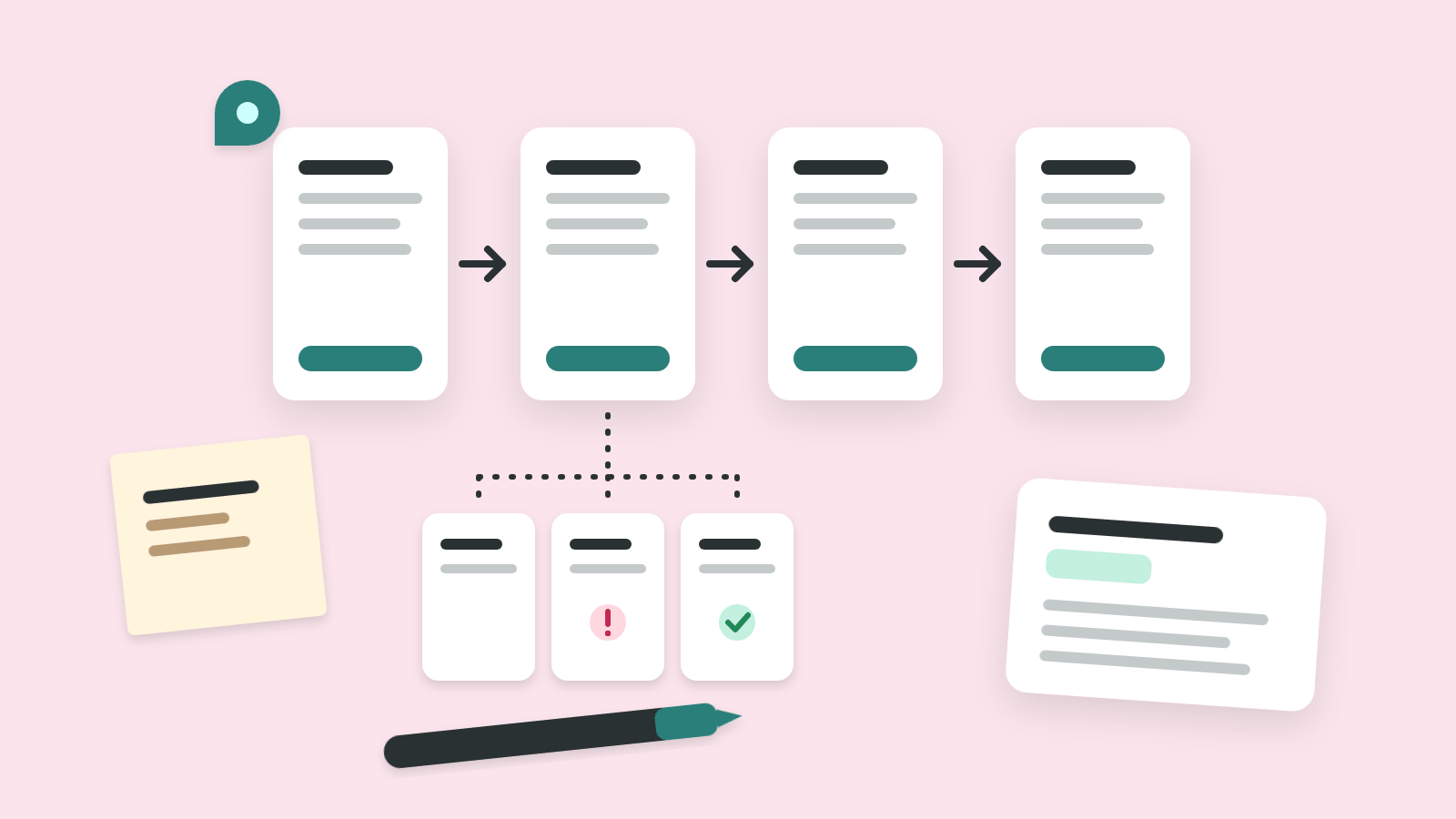
That rework usually starts with a handoff that is only a link to a file. The states, the rules and the reasons stay in the designer's head. A full handoff gives the engineer everything needed to build the design right, and keeps it true during the build.
What a Handoff Holds
A handoff answers four questions an engineer will ask during the build. Each question has its own part of the work:
- What to build: the flow, every state, the specs and the rules for data and screen sizes.
- Why it looks this way: a short record of each decision that someone could question later.
- Which version is current: one file, with a status on every frame and a note for every change.
- Who to ask: a walkthrough before the build and a designer who stays available during it.
Of those four parts, the reasons matter as much as the screens. An engineer who knows why a field is optional can handle a case the file never drew. An engineer who doesn't has to guess or wait for an answer.
In the course, the handoff sits between two neighbors. Design Workflows covers working with engineers before the handoff, and Attention to Detail covers checking your own file before it goes.
Anatomy of a Handoff
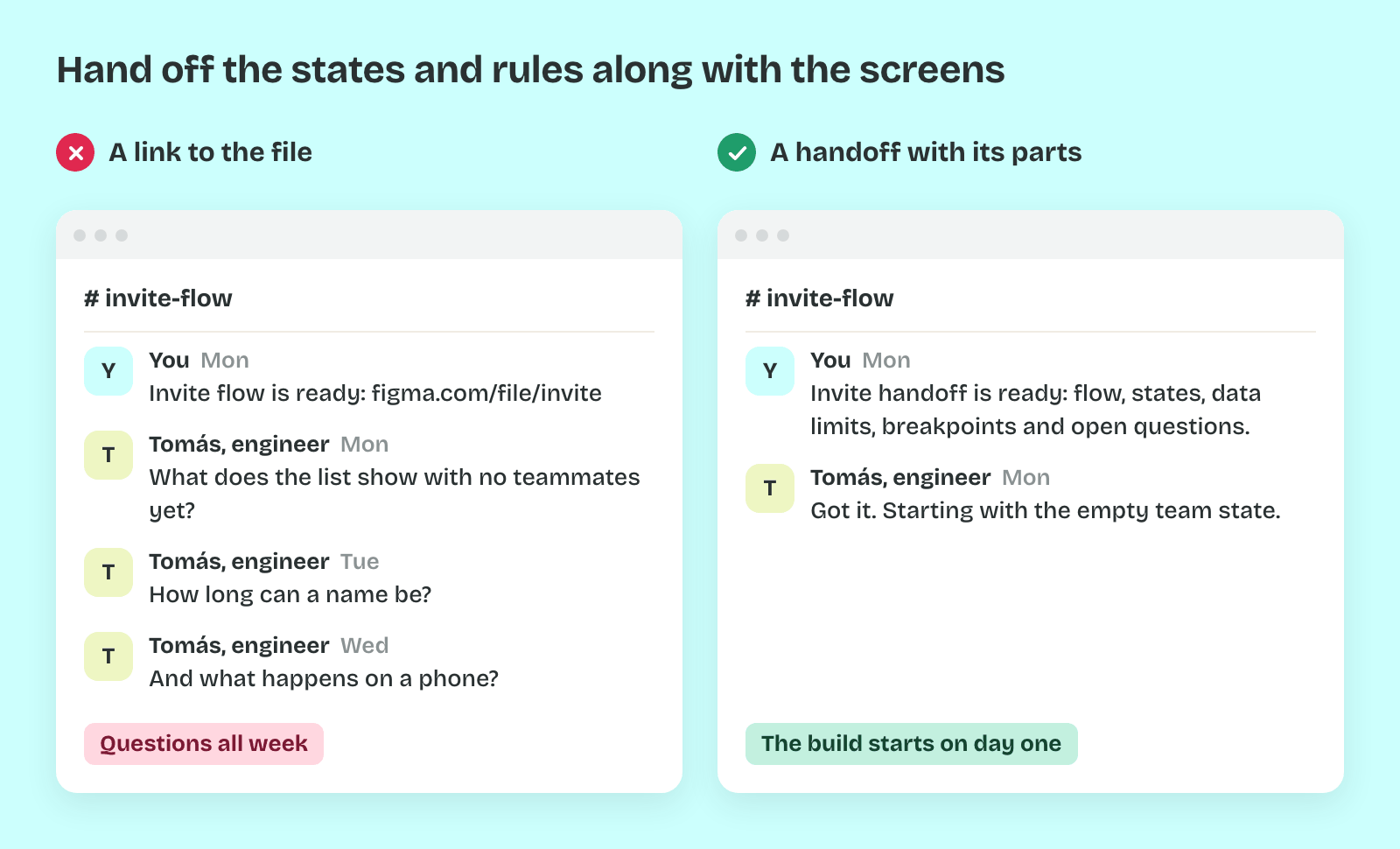
A link to a design file shows the screens and leaves out most of what the build needs. Imagine an invite flow handed over as six frames, each drawn with three teammates and short names. The engineer still has to ask about an empty team, a 40-character name and a phone screen.
So a handoff is easier to build from when its parts have names. Each part answers a question the engineer would otherwise ask in chat. Here is the same invite flow handed off as a bare link and as a full handoff:
The Parts of a Handoff
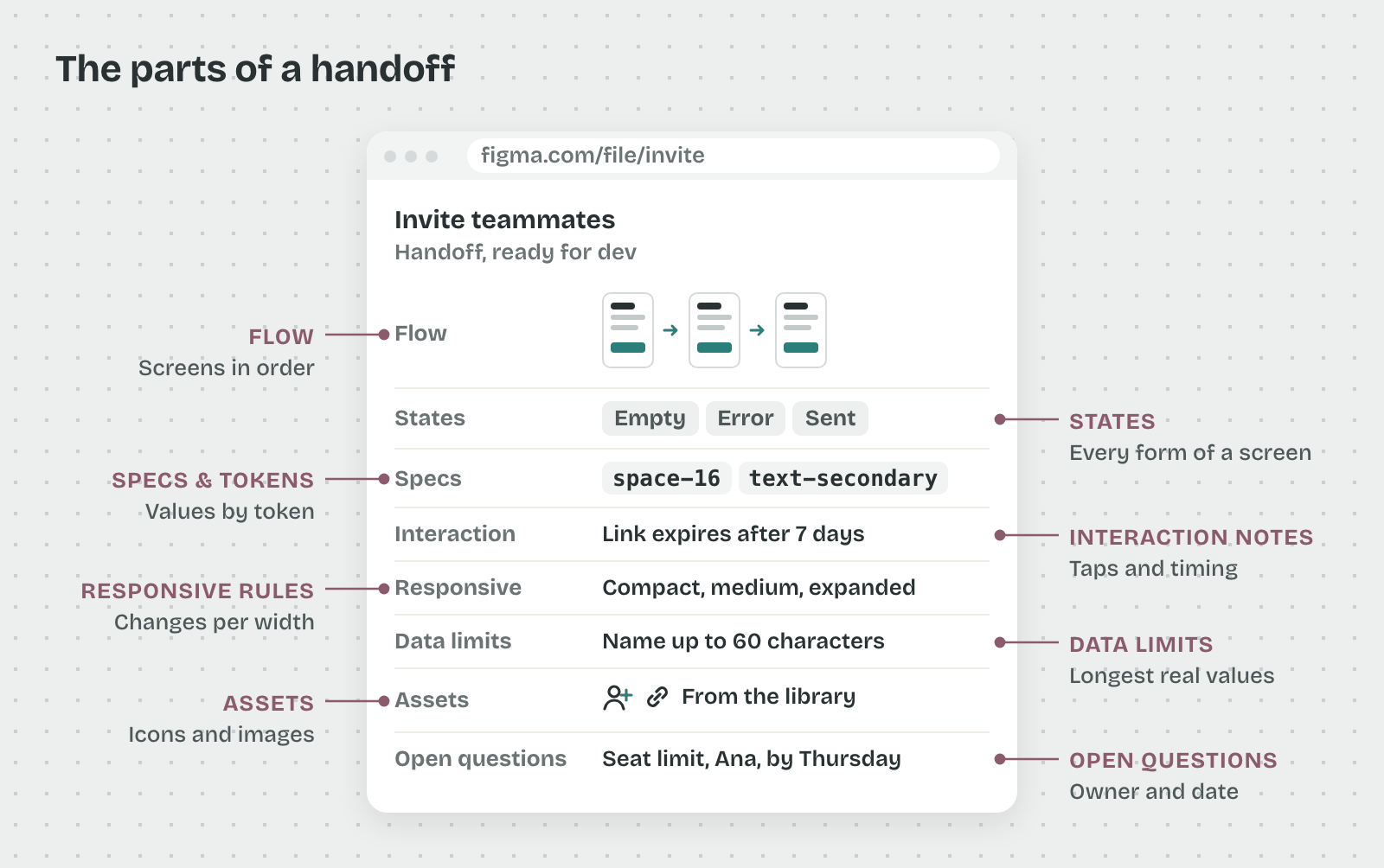
A typical feature handoff has eight parts, whatever tool the team uses. Each part has a clear job:
- Flow: the order of the screens, with every way in and out, such as Settings, then Members, then Invite.
- States: every form a screen takes, such as empty, loading, error and success.
- Specs and tokens: sizes, spacing and colors, named by their design-system tokens.
- Interaction notes: what happens on tap, hover and focus, and any timing, such as a link that expires after 7 days.
- Responsive rules: what changes at each screen width.
- Content and data limits: the longest and shortest real values, and what happens past them.
- Assets: the icons and images, linked from the library or exported.
- Open questions: what is still undecided, with an owner and a date.
That list also works as a page structure for the handoff file. Here is an invite screen's handoff page with each part named:
States and Data Limits
States and data limits are the parts most often missing, because a design is usually drawn with ideal data. The states come from mapping the feature with an engineer, which Design Workflows covers. In the handoff, every state on that map gets drawn as its own frame.
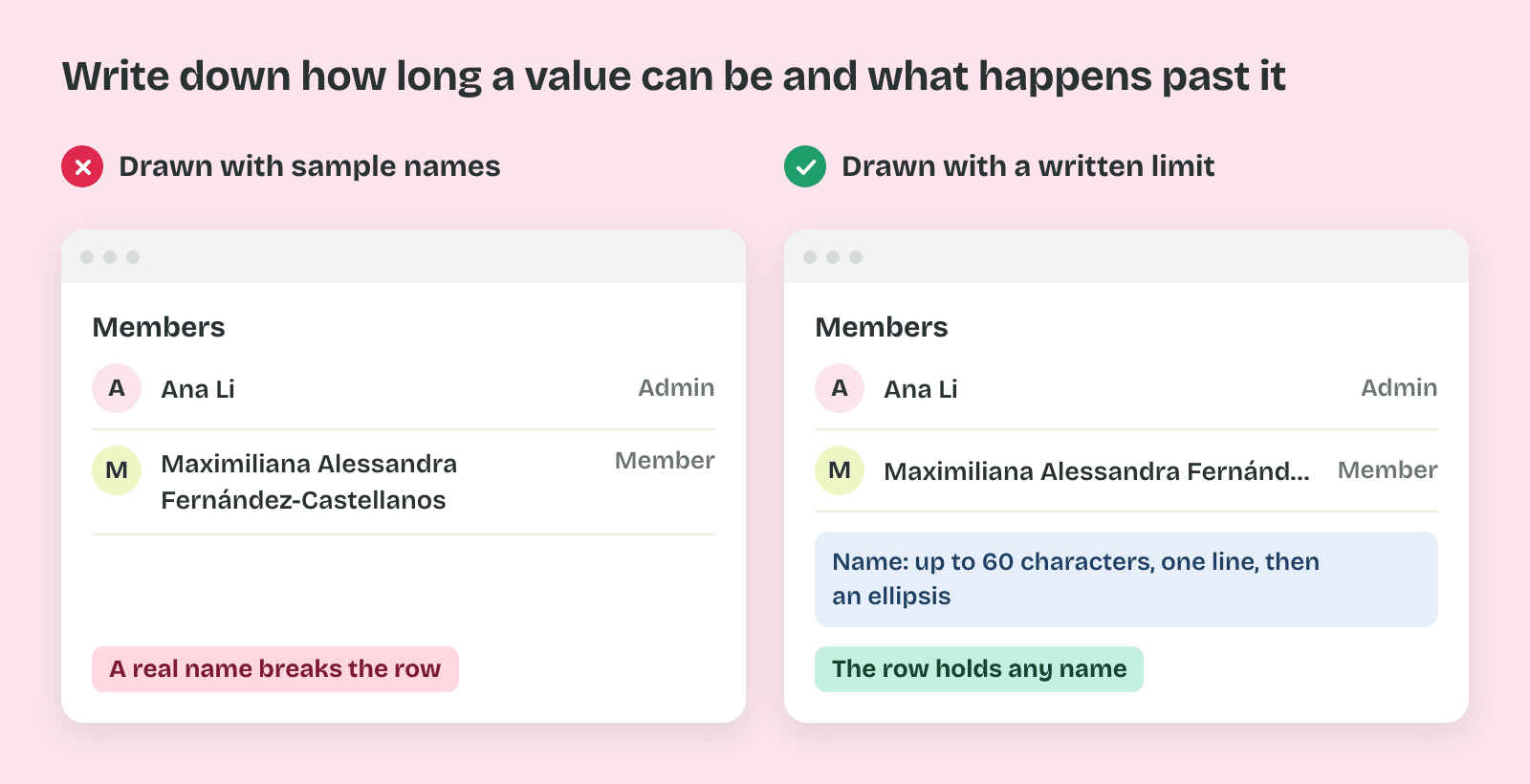
Unlike states, data limits need a rule as well as a picture. Patrick McKenzie's 2010 list of falsehoods programmers believe about names includes the idea that names fit within a set amount of space.
So write the limit down, such as names up to 60 characters, cut with an ellipsis after one line. Here is a member row drawn with a sample name and with a real long name:
Specs in the Engineer's Words
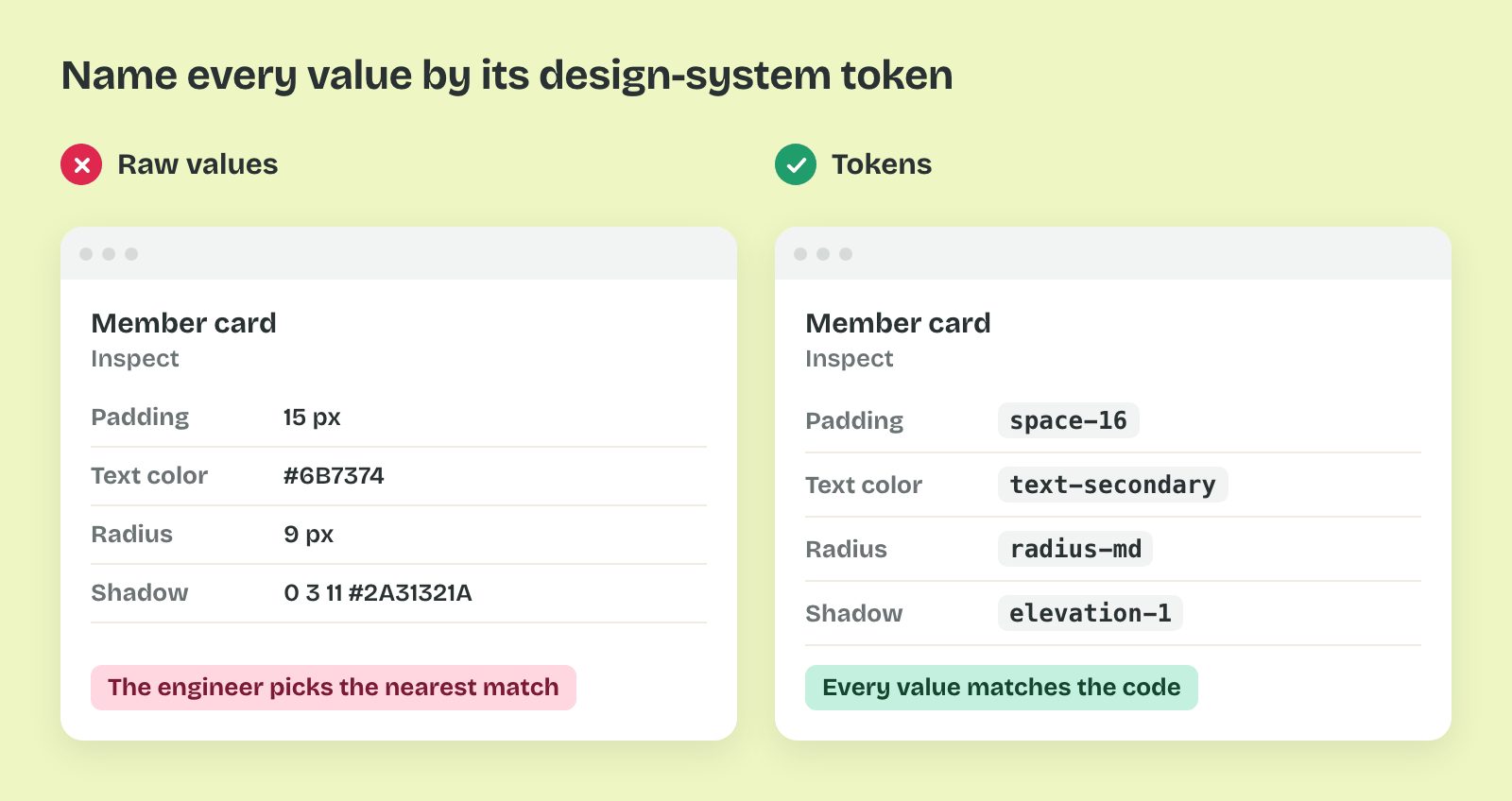
Specs are easiest to build when they use the names in the code. A token such as space-16 or text-secondary points to one value the engineer already has. A raw value such as 15 px or #6B7374 asks them to find the nearest match, and they may pick a different one.
The same goes for components. When Button / Primary in Figma matches a PrimaryButton in the codebase, the handoff becomes a lookup. Every one-off shadow or gray is extra code someone has to write and keep. Here is one card specified in raw values and in tokens:
Responsive Rules
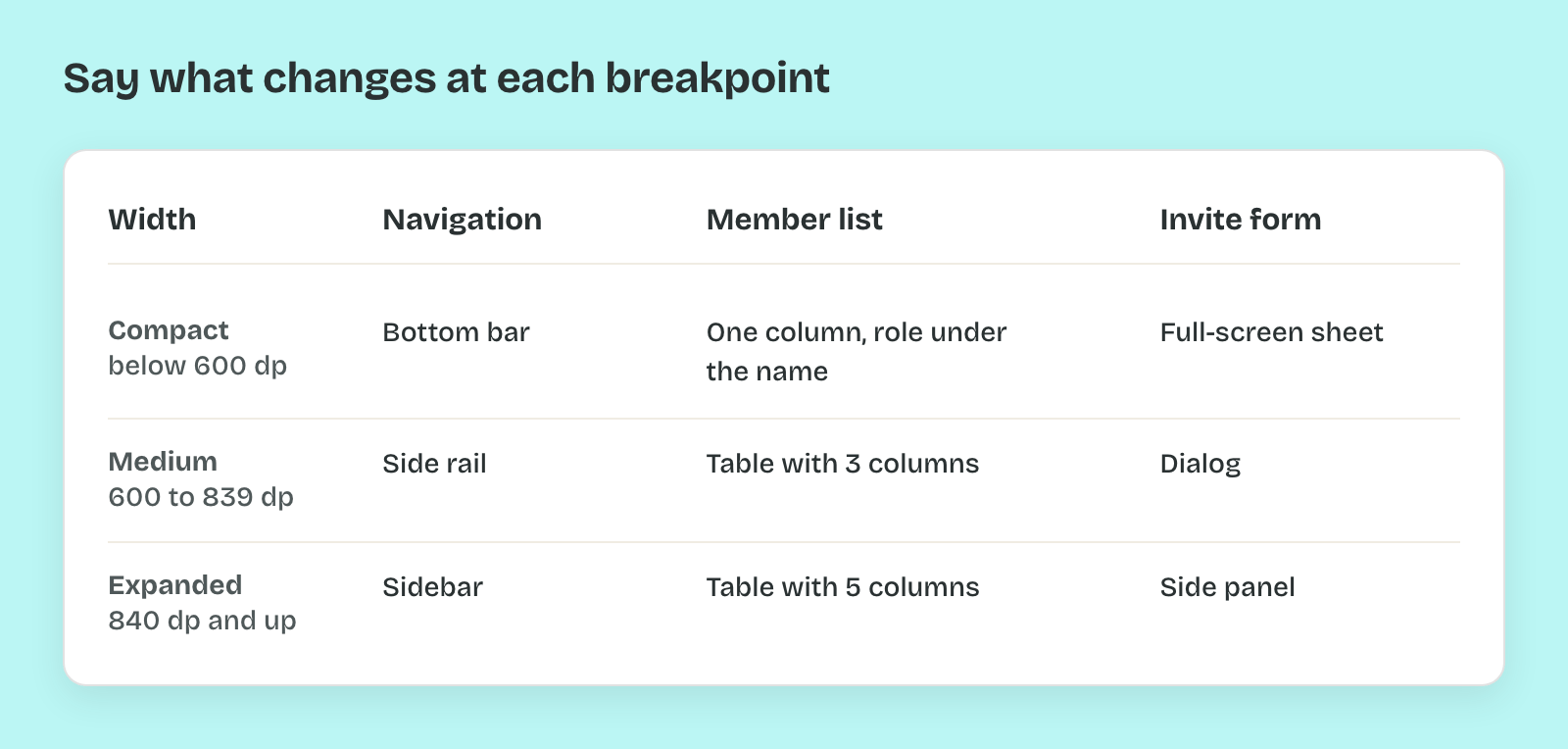
A responsive rule says what changes at a width, and it needs the width itself. Android's window size classes give a common set: compact below 600 dp, medium from 600 to 839 dp and expanded from 840 dp. Google notes that a class depends on the window, so a tablet in split screen can drop to a smaller one.
So name the breakpoints your product uses and say what changes at each one. Navigation, columns and tables tend to change, while text styles often stay the same. Here are the responsive rules for the invite screen:
Pro tip: Put the open questions on the first page of the handoff, each with an owner and a date. An engineer who sees "Seat limit for free teams: Ana, by Thursday" knows to build around it and whom to ask.