Interactive Prototyping
Picture a usability session for a typical six-screen signup prototype. The participant taps a plan card, and nothing happens, because only the button under it was wired. The designer leans in and says “imagine it opens the next step”. From that moment the session tests the narration, and the notes describe a product nobody built.
Learn on the move: press play and turn your commute, walk or drive into time that grows your design career.

That stall costs more than one lost hour. The recruiting budget buys findings about the wrong thing, and the team leaves believing the flow was tested. A prototype earns its place only when a person can use it without help.
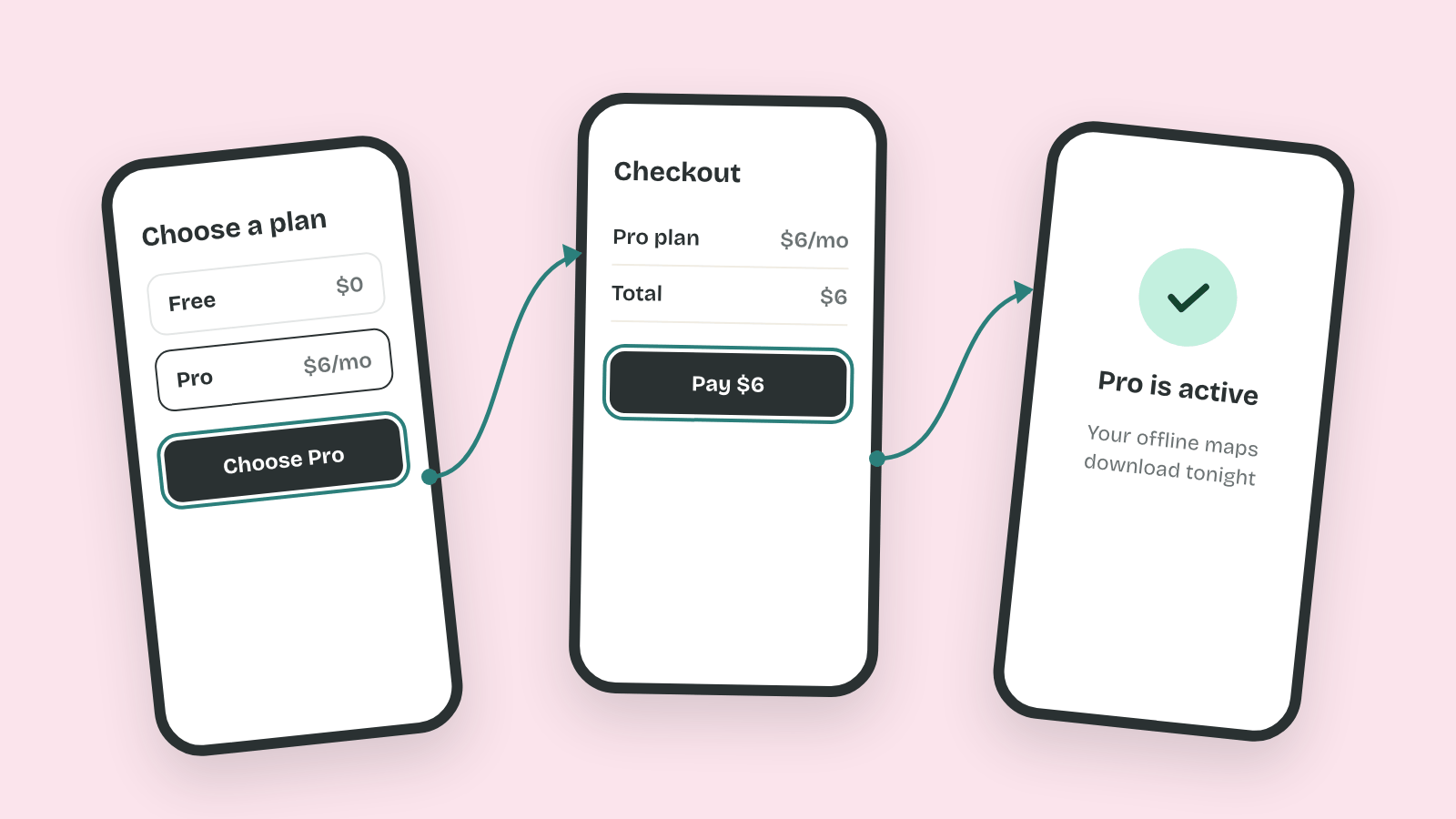
So an interactive prototype is a question made clickable. It needs enough wiring, motion and logic to answer that question, and nothing beyond it.
Why Build It by Hand
AI tools can now turn a prompt into clickable screens in minutes. Hand wiring in Figma still matters, because it runs on your real components, your design system and the exact flow with its branches. AI drafts a start, and you wire the version a test can rely on.
That reliability decides what a test is worth. Jakob Nielsen reported in 2000 that about five participants uncover roughly 85% of the usability problems in a design. So five sessions are cheap, and each one is wasted when the prototype breaks halfway through the task.
Anatomy of a Prototype
Open a typical first prototype in Figma and you'll often find forty blue connections fanning out from one screen. Every button links somewhere, each modal is a full copy of the page beneath it, and the back arrow points to one fixed frame. It plays fine in a demo. Then a tester opens the menu from the second screen and lands back on the first.
Most of those problems come from wiring without knowing the parts. A Figma prototype has a small anatomy, and each part answers one question about the interaction.
Frames, Hotspots and Starting Points
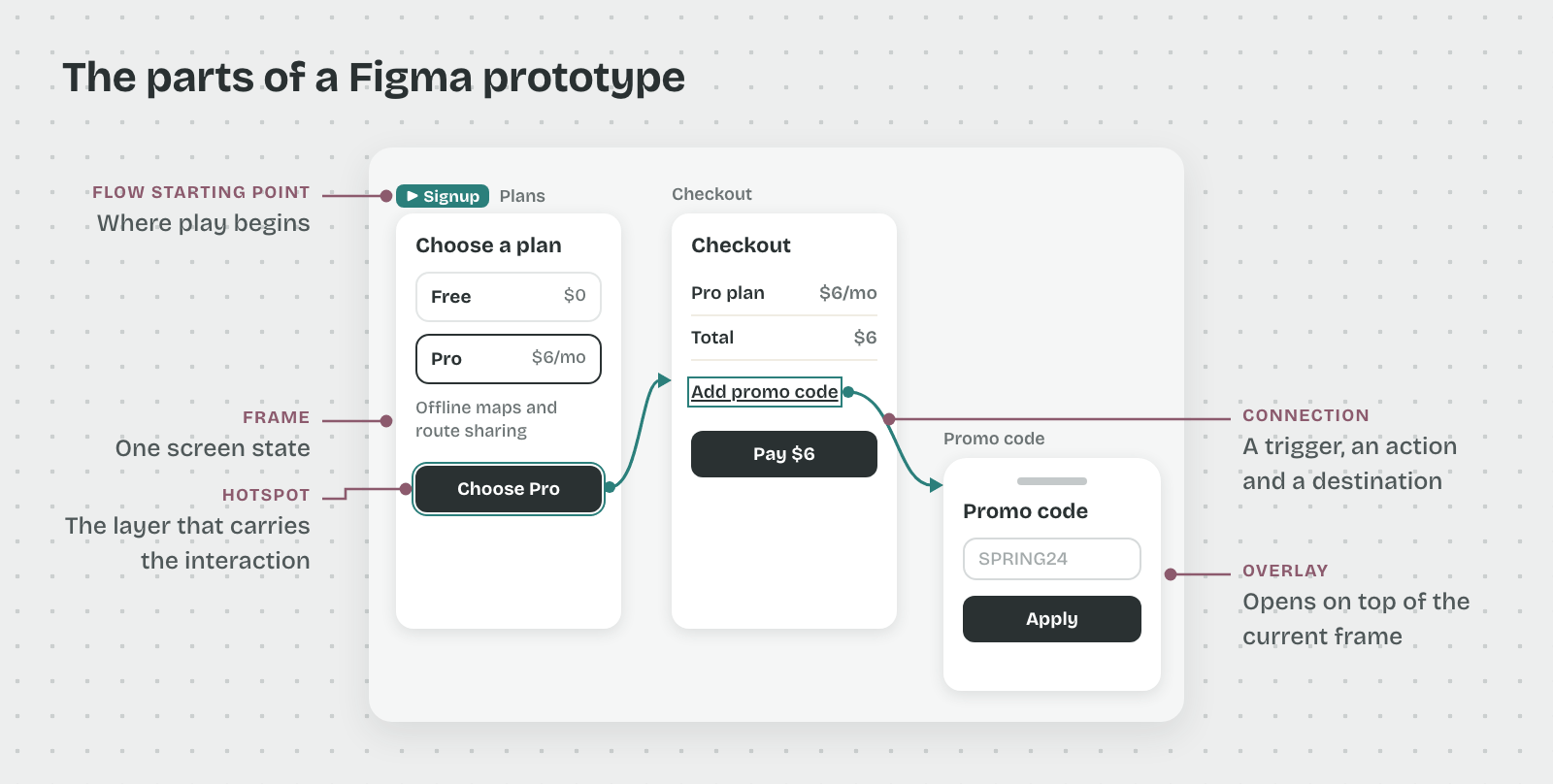
A frame is one screen state, the thing a tester sees at a given moment. A hotspot is any layer that carries an interaction, such as a button, a card or a whole list row. A flow starting point marks where play begins, and one file can hold several flows, each with its own start.
That last part saves time in a session. A separate starting point for returning users lets a tester skip onboarding without you clicking through it first.
Triggers and Actions
Every connection pairs a trigger with an action. The trigger is what the person does, and Figma offers 12 of them, including On click, On drag, While hovering, Key/Gamepad and After delay. The action is what the prototype does in return, such as Navigate to, Back, Scroll to, Open link or Change to for a component variant.
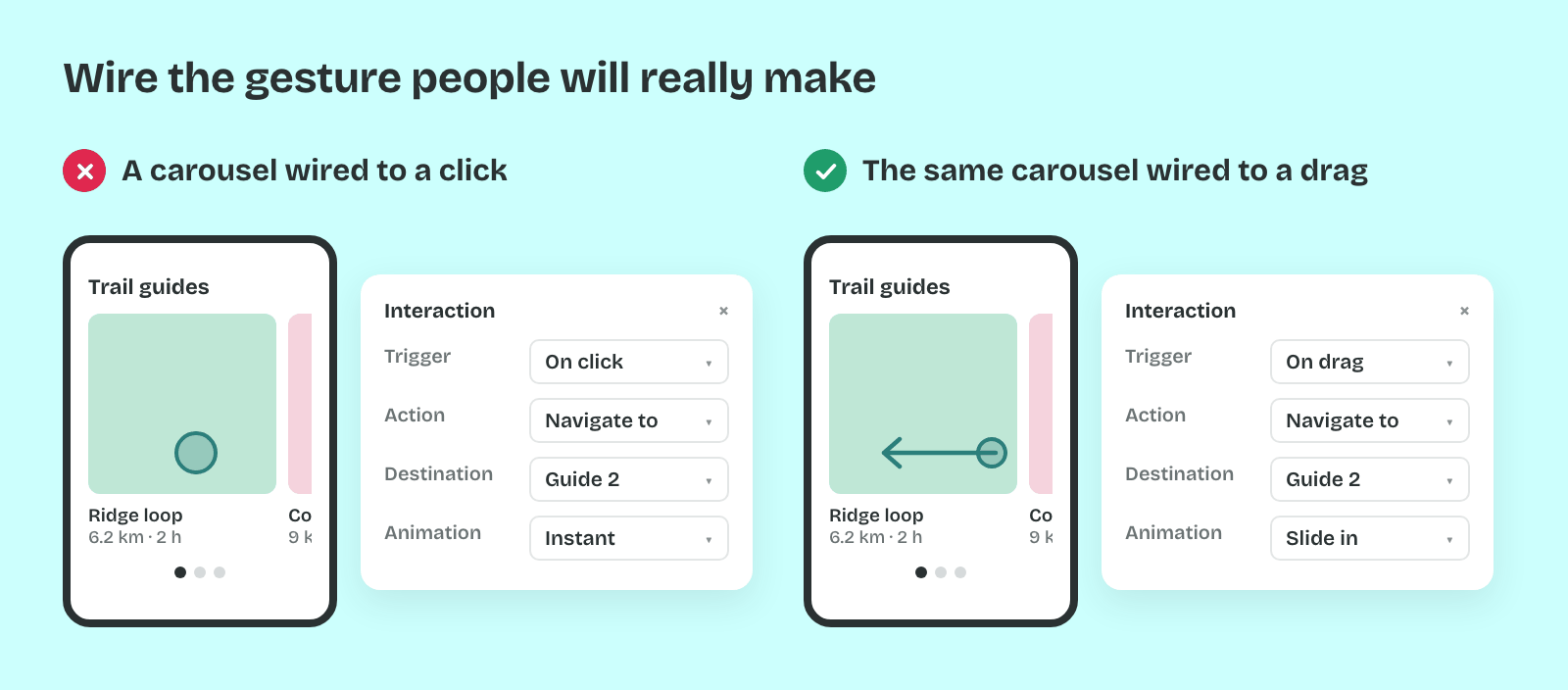
So the pair should match the real gesture. A carousel wired with On click teaches nothing about swiping, because the tester never swipes. After delay belongs to splash screens and auto-advancing slides, since a delay on a content screen moves people on before they finish reading.
Overlays
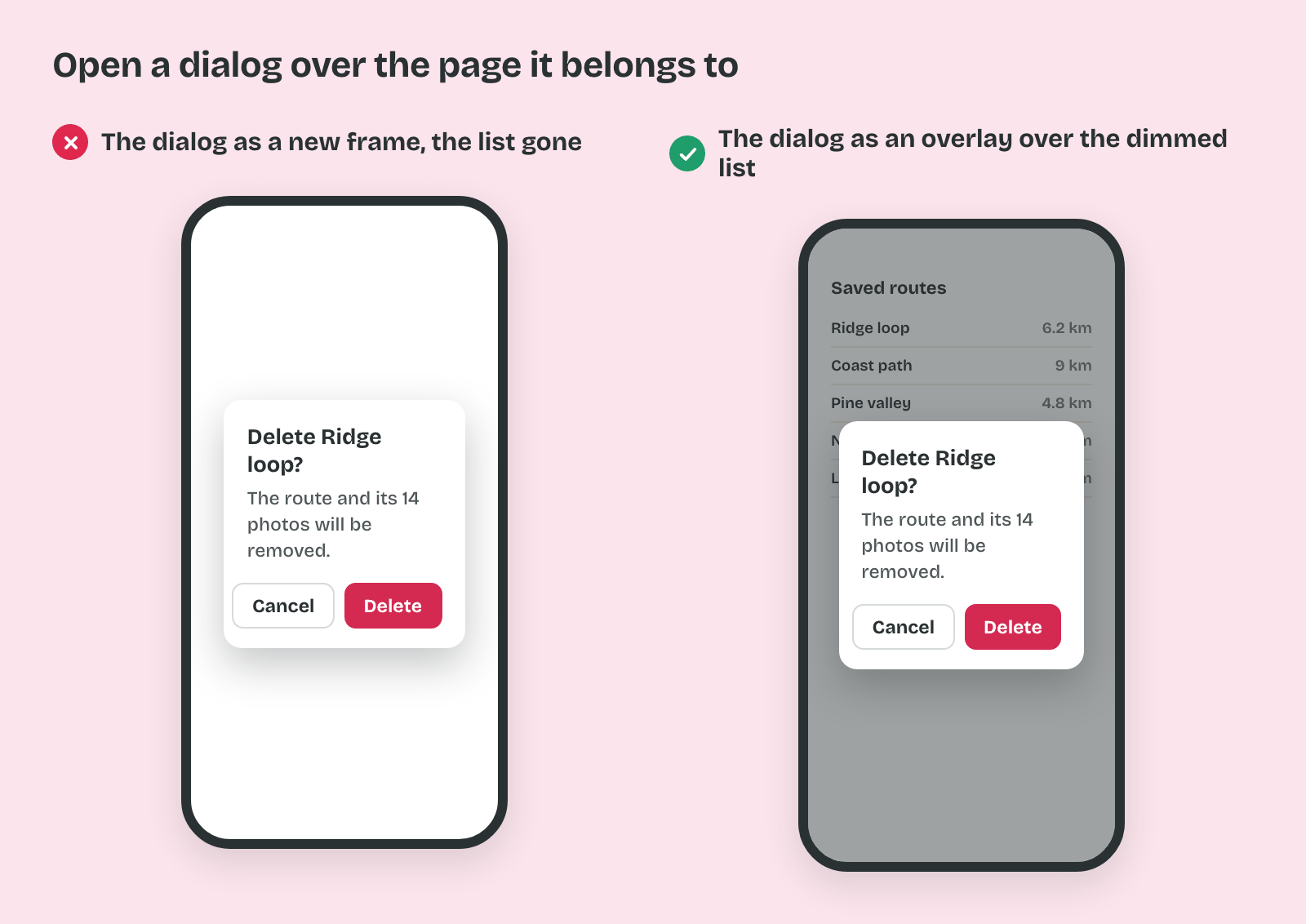
An overlay is a frame that opens on top of the current one, used for modals, menus, sheets and date pickers. Open overlay keeps the page visible beneath it, so the tester sees what the dialog belongs to. Swap overlay replaces one overlay with another, and Close overlay returns to the page underneath.
That's why a modal built as a new full frame is a common mistake. The context behind it disappears, and the frame count doubles for every dialog. Overlay settings also cover position, a background dim and closing on an outside click, which matches how most real dialogs behave.
Wiring That Survives Edits
A prototype changes daily before a test, so the wiring has to survive edits. Interactions set on a main component carry into every instance, so a tab bar wired once works on all 12 screens. Change to switches a variant inside a component, so a toggle flips in place instead of jumping to a copied frame.
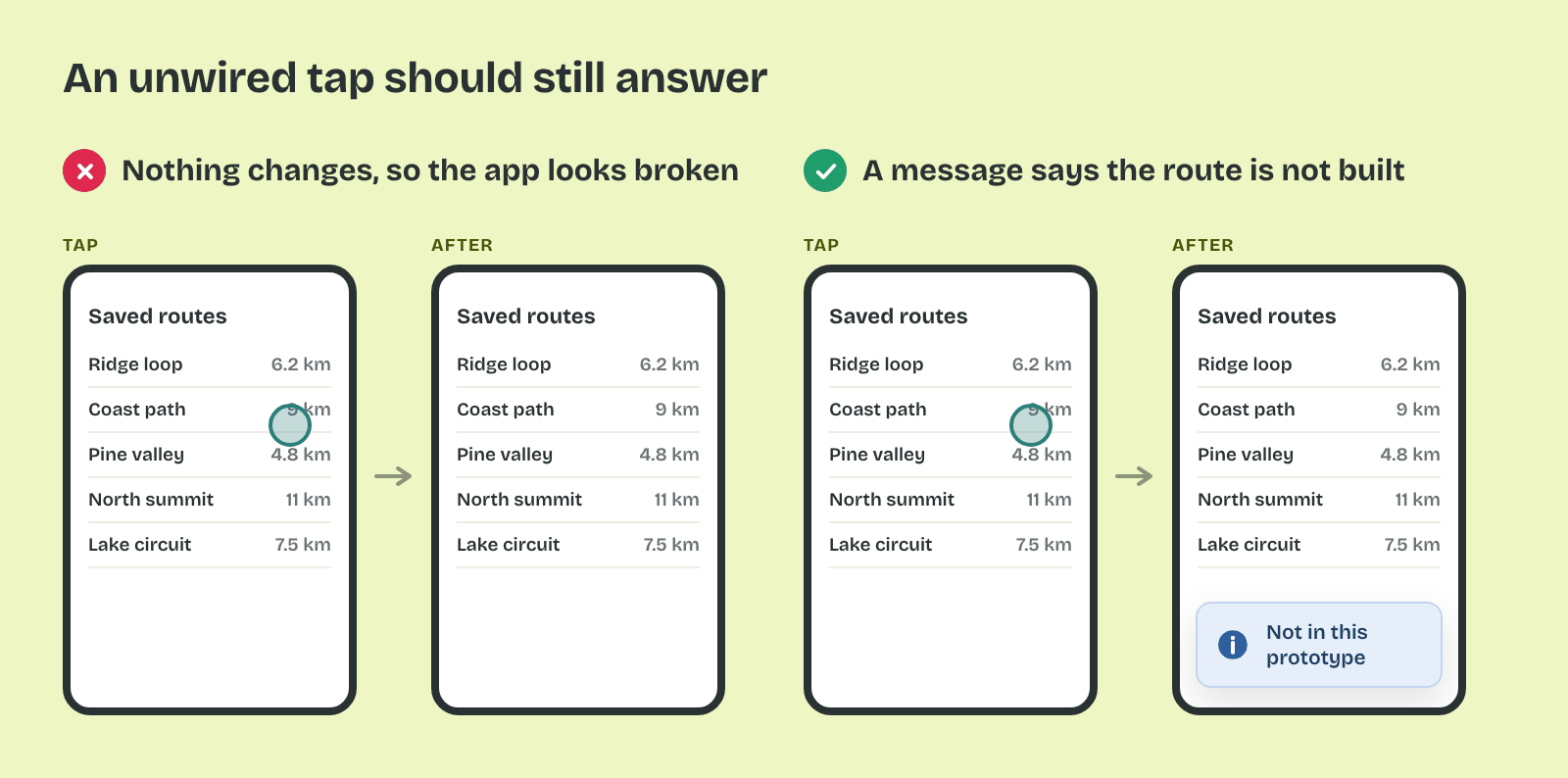
Which means you wire only the path your question needs. Every unwired hotspot should still answer, with a short “Not in this prototype” overlay instead of a dead tap. A tester who taps and sees nothing assumes the product is broken, and the notes fill with a problem the real product will never have.